The author is marketing director at Wheatstone Corp. This is one in an occasional series offering case studies in how specific products are deployed by users.
If your only tool is a hammer, every problem looks like a nail. That’s one good reason why broadcast tools today look less like a hammer and more like Wheatstone’s ScreenBuilder virtual development suite.
“We’ve been using ScreenBuilder around the facility for years and it’s turned into a tool that is almost like a Swiss army knife for us. We can create environments for talent to be able to do different functions without having to buy a whole console or build out too much in a room,” said Don Stevenson, chief engineer for Reach Media/Radio One, Dallas.
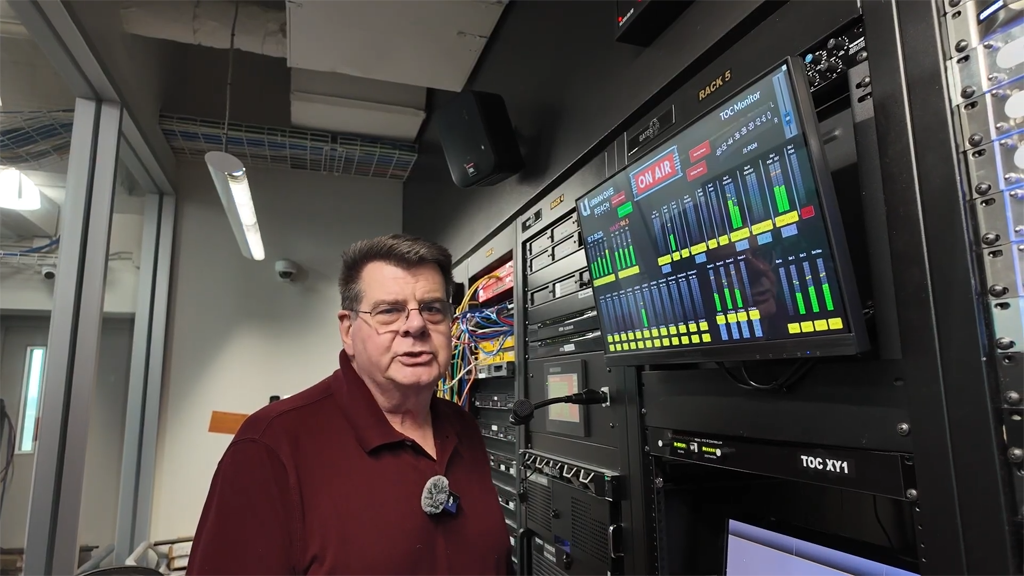
ScreenBuilder is a suite of tools for customizing touchscreens that tap into the WheatNet IP audio network.
By utilizing prebuilt widgets and a simple scripting wizard, Stevenson can create touchscreen interfaces with full access to elements and controls in the WheatNet IP audio network.
Need to add a control panel for shared access to a dozen audio codecs between several studios? Or how about a touchscreen producer panel for controlling mics during a busy show? What about a virtual interface to monitor signals and control signal routing to multiple transmitter sites? Or a quick intercom between studios and venues? Or a news workstation that gives you automatic gain, multiple source selection, intercom, and full mixing from one menu-driven touchscreen? ScreenBuilder is the tool.
Stevenson selects from a menu of controls, clocks, faders and dozens of other widgets, and applies basic scripting for creating touchscreens for various purposes and additions to existing studios.
He’s made producer touchscreens, editing interfaces and a variety of control touchscreens, including a master-control interface that includes everything for two morning shows, two afternoon shows, an evening show and a 24-hour inspirational program for Reach Media network syndication.
“It’s kind of like a little control center for us,” said Stevenson. The interface sits on a 24-inch touchscreen that hangs off a rack in the TOC and serves as control central for all communications between Reach Media in-studio producers, talent and staff, and those remoting in from Anywhere, U.S.A.
Anyone can easily do a sound check directly from the touchscreen for any remote source coming in from Comrex Access, BRIC codecs or other connections, and they can route any of the studio feeds to the Westwood One XDS satellite platform and, in the case of the D. L. Hughely show, upload files to the Synchronicity media distribution service.
The original ScreenBuilder touchscreen has been with Reach Media in one variation or another for several years, and was one of the first screens Stevenson and then-Assistant Engineer Steve Walker (now part of Wheatstone’s Tech Support team) made when Radio One’s two Dallas stations moved onto the 11th floor of the Stone Tower after Radio One purchased a controlling interest in Reach Media. Reach Media/Radio One Dallas has four on-air rooms, two production studios and several editing booths, all predominantly WheatNet IP audio-networked with ScreenBuilder screens throughout.
One touch interface developed using ScreenBuilder is on a smaller Microsoft Surface that Rickey Smiley producers use for call-ins to his morning show. Everything they need is on a small touchscreen tablet: headphone and program feeds, mic controls for guests and VoxPro inputs for phone-ins.
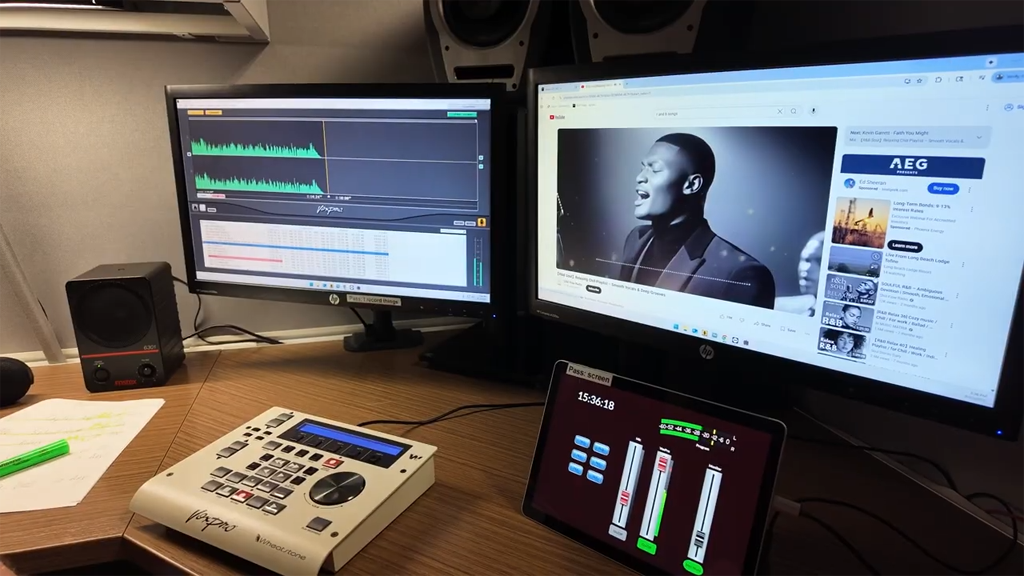
For D. L. Hughley and his afternoon show, a ScreenBuilder screen sits on a desktop screen next to a VoxPro monitor in a production studio. “We basically built him a console using ScreenBuilder.” Stevenson explained. “It’s a small room, originally intended to be a voice booth only.
“Anytime someone comes to me with some kind of request, I quite often think of the tool set that is in ScreenBuilder,” Stevenson said, adding, “I find it a tool that I keep going back to over and over again.”
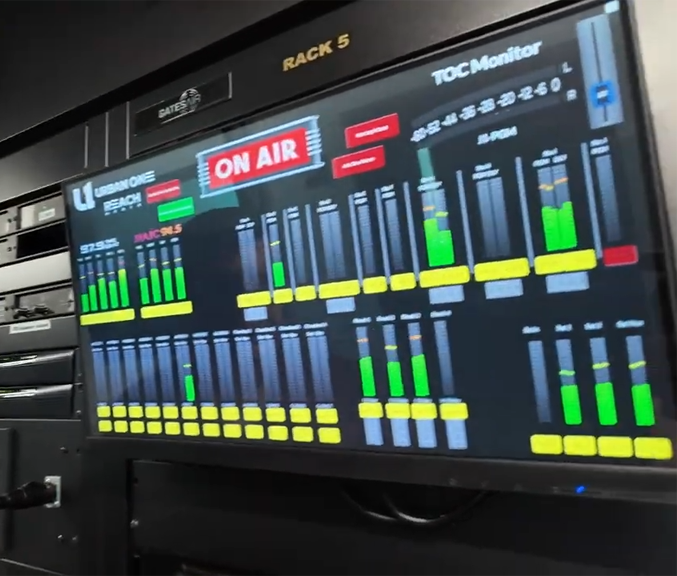
The touchscreen shown above in the Reach Media TOC gives operators a full picture of everything going on in the facility. They can listen in on feeds in studios or other locations by tapping an on-screen button, and talk back to talent coming in from any codec feed by tapping another button on the screen. (Operators in the TOC can talk directly with talent through a microphone in the TOC.)
On the lower left side of the screen are the various send/receive connections for talent, all accessible in one place. Sources are noted below each talent feed; for example, ACCESS 6 is getting a feed from Studio I, bus-minus 17. VU meter, volume control — it’s all there.
“This shows us everything that’s going in the facility with the ability to hit a button and be able to hear exactly what it is, all at one time,” Stevenson said. “There’s no other way to do something like this without using ScreenBuilder.”
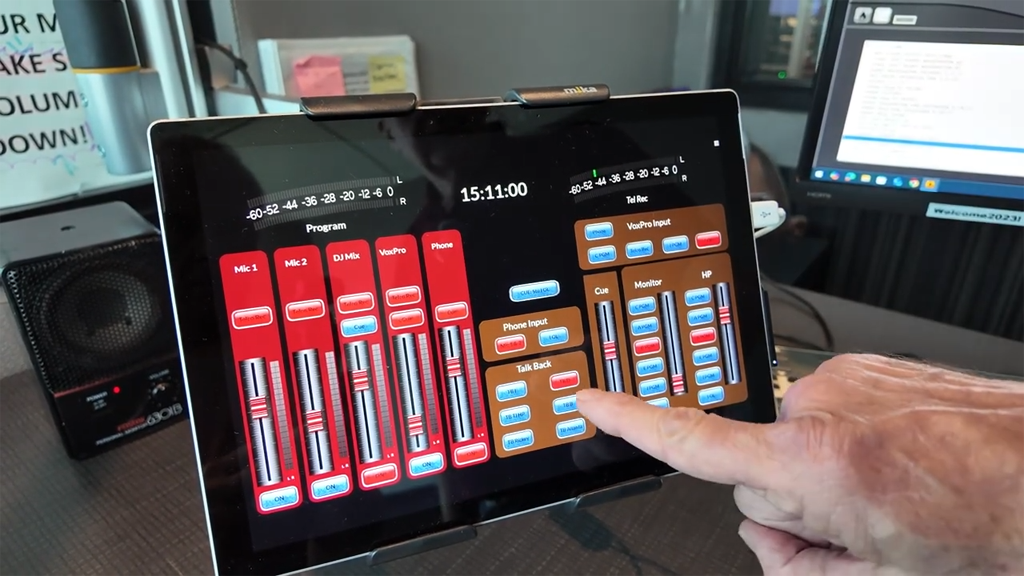
The screen shown above is in the Reach Media multipurpose room and is used by Rickey Smiley’s call screener.
From this small tablet, the screener can turn mics on or off, select and control inputs for VoxPro and phones, talk back to Smiley and others, and cue mixes and monitor levels. The Reach Media multipurpose room started out as a DJ mix room for the hip-hop station but added responsibilities during the studio consolidation that came with Reach Media’s move to a new facility. The multipurpose room also took on Rickey Smiley’s call-screener function with the addition of a simple touchscreen tablet.
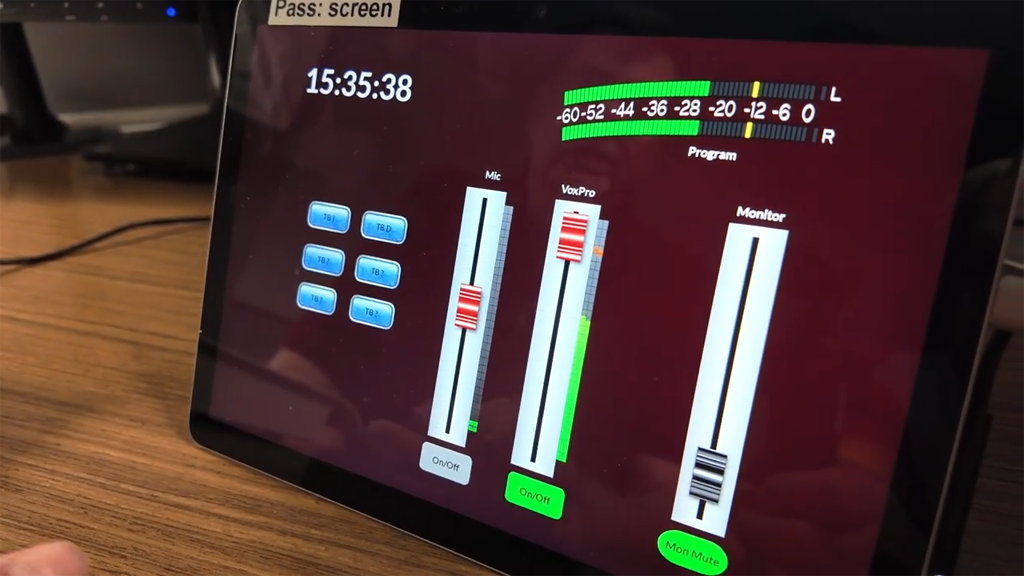
This touchscreen is in a small edit room occupied by a computer and VoxPro record/edit controller. Its main function is to record an actuality directly from the internet into VoxPro.
Got an interesting application story about a product? Drop Radio World a line at [email protected].